Ubuntu Virtual Box Start Error


Ubuntu 11.04 Kernel Version

Linux localhost.localdomain 2.6.18-194.32.1.el5 #1 SMP Wed Jan 5 17:53:09 EST 2011 i686 i686 i386 GNU/Linux

환경에서 Virtual Box 를 구동하려고 하니 다음과 같은 에러메시지가 나타났다.

“Failed to start the virtual machine WindowsXP.
Failed to open/create the internal network ‘HostInterfaceNetworking-eth0’ (you might need to modprobe vboxnetflt to make it accessible) (VERR_SUPDRV_COMPONENT_NOT_FOUND).
Please install the virtualbox-ose-dkms package and execute ‘modprobe vboxdrv’ as root (VERR_SUPDRV_COMPONENT_NOT_FOUND).”

이유인즉, 두 개의 모듈 vboxnetflt 와 vboxdrv 이 적재 되지 않아서 발생하는 문제였다.

vboxdrv 의 경우,

$ sudo modprobe vboxdrv

의 명령어로 로딩시킬 수 있었지만, vboxnetflt 모듈의 경우에는 다음의 에러 메시지를 내며 로딩되지 않았다.

jonathan@jonathan-laptop:~$ sudo modprobe vboxnetflt
[sudo] password for jonathan:
FATAL: Error inserting vboxnetflt (/lib/modules/2.6.32-33-generic-pae/updates/dkms/vboxnetflt.ko): Invalid module format

한참을 고민하다가 해결책을 찾았는데, 너무도 간단했다.
다음의 명령어로 모듈을 업로드 할 수 있다.

$ modprobe /lib/modules/2.6.32-33-generic-pae/updates/dkms/vboxnetflt.ko
또한, 매 재부팅시 자동으로 모듈 업로드를 설정하기 위해서, /etc/modules 의 파일을 수정해야 한다.

</etc/modules>

# /etc/modules: kernel modules to load at boot time.
#
# This file contains the names of kernel modules that should be loaded
# at boot time, one per line. Lines beginning with “#” are ignored.

lp
vboxdrv
/lib/modules/2.6.32-33-generic-pae/updates/dkms/vboxnetflt.ko


Virtual Box에서 내부 내트워크와 외부 네트워크와의 통신 문제 해결…

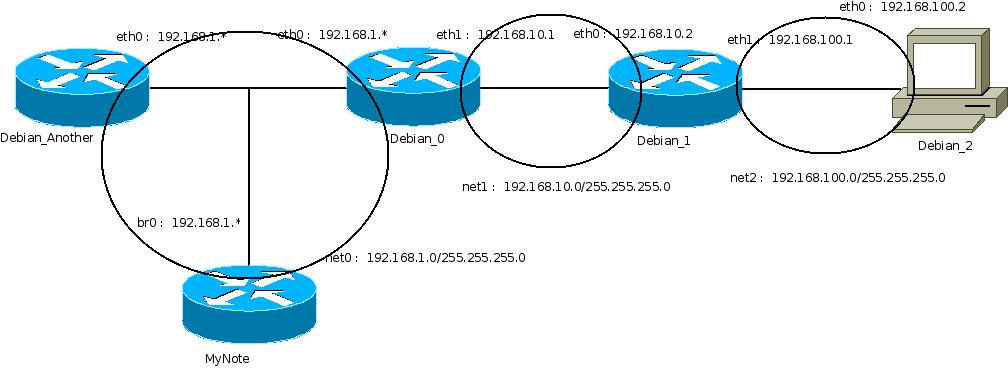
학교 과제문제때문에 Virtual Box로 다음과 같은 네트워크를 구성하였다.

사용자 삽입 이미지
 net0 이 바로 Virtual Box에서 구성한 Bridge 구성이고, 나머지 net1 과 net2 는 실습을 위한 내부 네트워크 이다.

 이 네트워크를 구축할 때, 나는 공유기를 사용하고 있었다.

 그리고 라우팅 테이블을 수정해서 모든 노드가 서로 통신이 가능하게끔 하였다.

 그런데 문제가 발생했다.

 바로 외부 네트워크(인터넷)의 연결 부분이었다.

 MyNote, Debian_0, Debian_Another 은 인터넷이 가능하였다. 하지만, Debian_1, Debian_2 은 인터넷이 되지 않았던것….

 이상한 일이었다.

 심지어 인터넷이 안되는 두개의 호스트는 공유기로의 ping도 되지 않았다. 공유기와 같은 네트워크에 있는 net0 에 있는 모든 노드와는 통신이 되는데, 유독 공유기와는 연결이 되지 않았다.

 이유는 다음과 같았다.

 바로 공유기에서 문제가 있었다.

 공유기에서의 라우팅 셋팅을 하지 않았던 것.

 당연한 것이다. 하지만….. 나름 공유기를 믿고 있었는데…자동으로 라우팅 테이블을 작성할 줄 알았던 것이다.(너무 바랬다….)

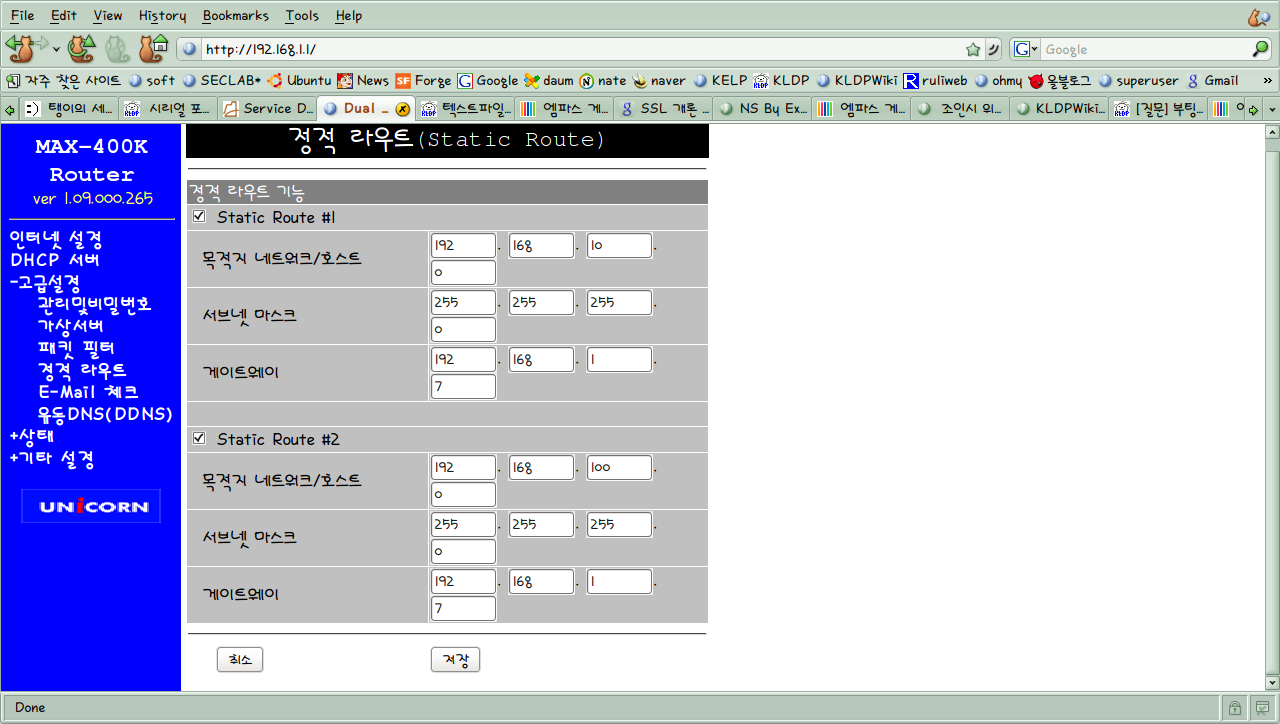
 공유기에서의 static routing table을 다음과 같이 수정하니 인터넷과 통신이 매우 잘 되었다.

사용자 삽입 이미지
 게이트웨이 192.168.1.7 의 주소는 Debian_0 의 주소이다.

Virtual Bax 에서 브릿지 구성 이용하기..

 리눅스에서 돌아가는 훌륭한 가상머신 Virtual box!

 하지만 NAT 구성을 사용할 경우 웬일인지 호스트에서 게스트로의 Ping 과 ssh, telnet 접속이 되지 않았다..

 그래서 브릿지 구성을 통하여 문제를 해결했다.

 먼저 임의의 디렉토리에 다음의 스크립트를 작성한다.

startup.sh (Language : perl)
  1. #!/bin/sh
  2.  
  3. brctl addbr br0
  4.  
  5. ifconfig eth0 0.0.0.0
  6. #ifconfig wlan0 0.0.0.0
  7.  
  8. # for wireless lan
  9. #brctl addif br0 wlan0
  10.  
  11. # for wired lan
  12. brctl addif br0 eth0
  13.  
  14. # If you have a dhcp-server uncomment this line
  15. dhclient3 br0
  16. #dhcpcd br0 -A
  17.  
  18. # If you have a static IP uncomment the following lines and
  19. # change the IP accordingly to ypur subnet
  20. #ifconfig br0 192.168.1.110 up
  21. #route add default gw 192.168.1.1
  22.  
  23. # Change your username accordingly
  24. tunctl -t tap0 -u pchero
  25. tunctl -t tap1 -u pchero
  26.  
  27. # Now add the tap-device to the bridge
  28. ifconfig tap0 up
  29. ifconfig tap1 up
  30. brctl addif br0 tap0
  31. brctl addif br0 tap1
  32.  
  33. route add -net 192.168.10.0 netmask 255.255.255.0 br0
  34. route add -net 192.168.100.0 netmask 255.255.255.0 br0
  35.  

 위의 스크립트 파일 구성은 브릿지 네트워크를 사용하는 가상 머신이 두개일 때 사용하는 스크립트이다.

 만약 세개 이상이 필요하다면 원하는 숫자만큼 tap 인터페이스를 늘리고 br0에 붙여서 사용하면 된다.

 다음은 종료시 사용하는 스크립트이다.

stop.sh (Language : perl)
  1. #!/bin/bash
  2.  
  3. # Biring the interfaces down
  4. ifconfig tap0 down
  5. ifconfig tap1 down
  6. ifconfig br0 down
  7. #ifconfig br1 down
  8. brctl delif br0 tap0
  9. brctl delif br0 tap1
  10. #brctl delif br1 tap1
  11. brctl delbr br0
  12. #brctl delbr br1
  13.  
  14. # Now setup your network-interface again
  15. # for dhcp uncommnet the following line
  16.  
  17. # for wired lan
  18. dhclient3 eth0
  19.  
  20. # for wireless lan
  21. #dhclient3 wlan0
  22.  
  23. # For a static IP uncommnet the following lines and change them accordingly
  24. #ifconfig eth0 192.168.10.100
  25. #route add default gw 192.168.10.1 dev eth0
  26.  

 이렇게 만들어진 스크립트를 사용하기 위해서는 다음의 작업들이 더 필요하다.

 먼저 네트워크 세팅에서 호스트 네트워크로 변경한다.

 그런 다음, 호스트 인터페이스 설정에서 설정 프로그램에 startup.sh, 종료 프로그램에 stop.sh, 인터페이스 이름에 설정한 tap0, tap1 을 설정한다. 다음은 설정 예이다.

gksudo /home/pchero/virtual_box/starttun.sh
gksudo /home/pchero/virtual_box/stop.sh

 앞쪽에 붙어있는 gksudo 는 root의 권한으로 사용하기 위한 명령이다.

 ….하지만 나의 경우는 이상하게 gksudo 로 설정을 해도 되지 않았다. 일일이 하나씩 스크립트를 수동으로 실행을 시켜야 되었다..

 왜그럴까….;;;